Viewer
For the people who need to know where the programme stands.
What they can do:
- Open every workspace of the project
- Follow milestones, forecasts and changes
- Read the registers and their history
- Read the reports

Schedule analytics for project controls
Know where the programme stands. Every Primavera P6 and Microsoft Project update, read for you: the milestones, the critical path, the forecast and what changed.
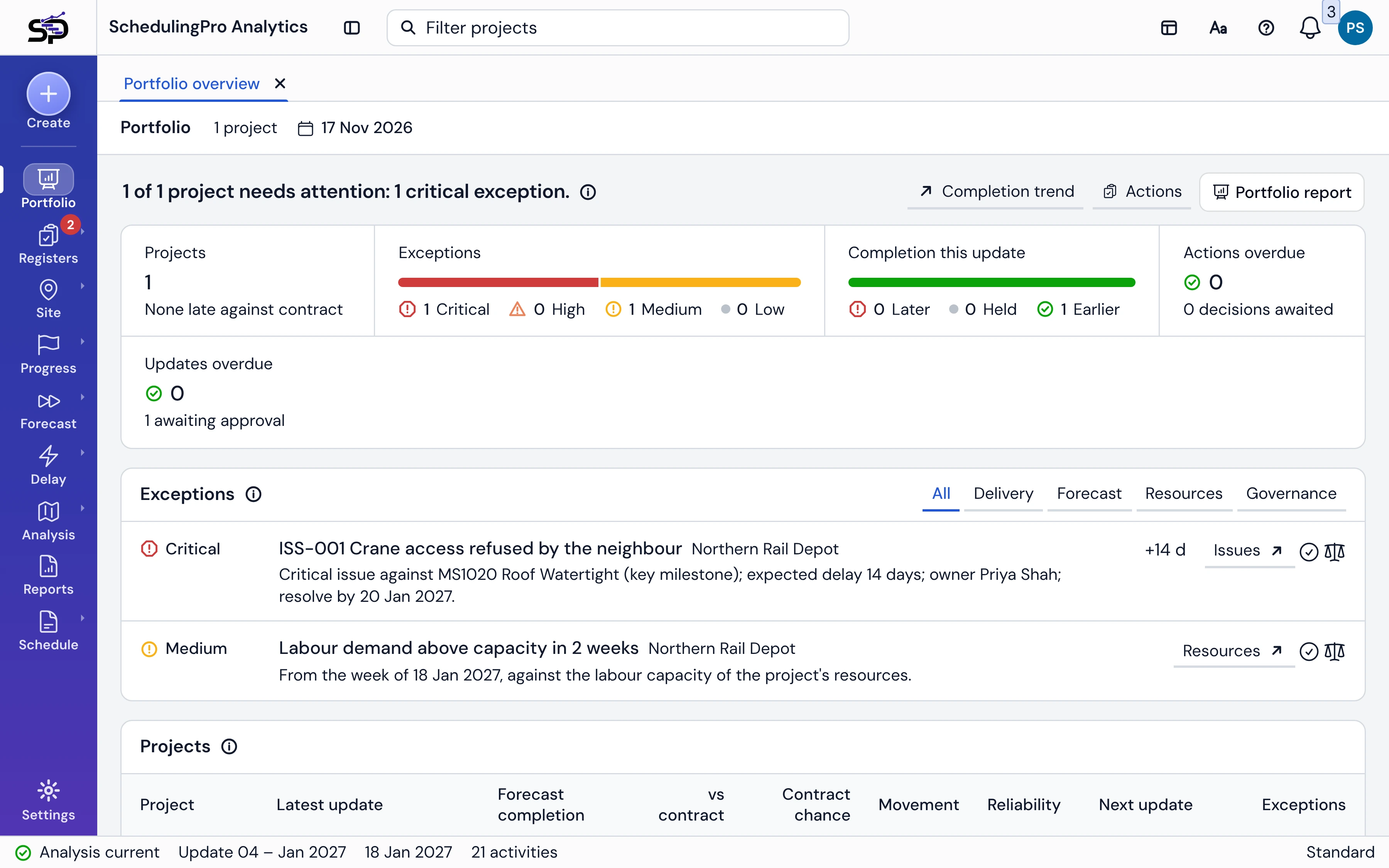
Overview
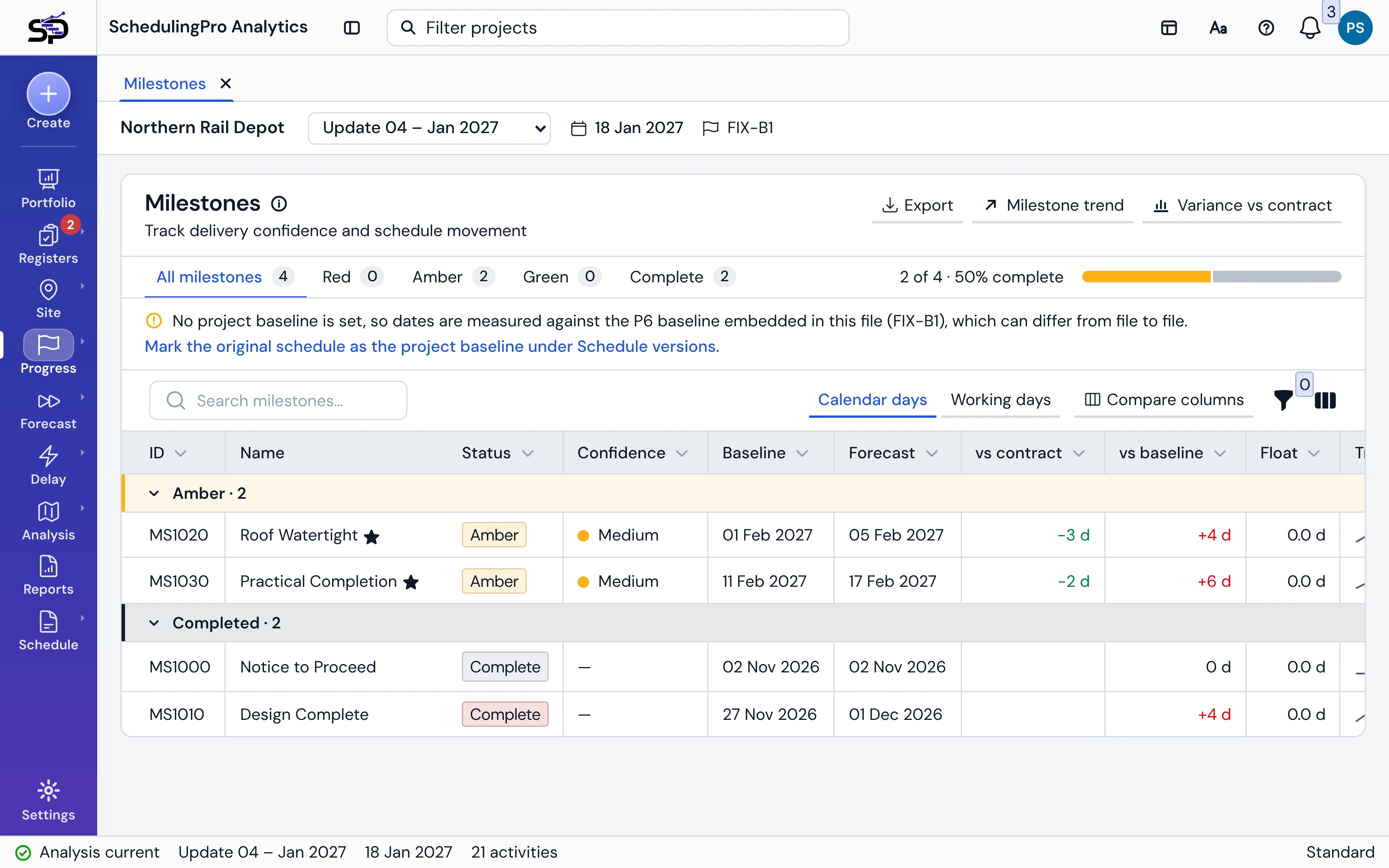
Each milestone against its contract date, the baseline and the last update, with its trend, a projection and a confidence rating. Nothing is typed in: it is all read from the schedule file.
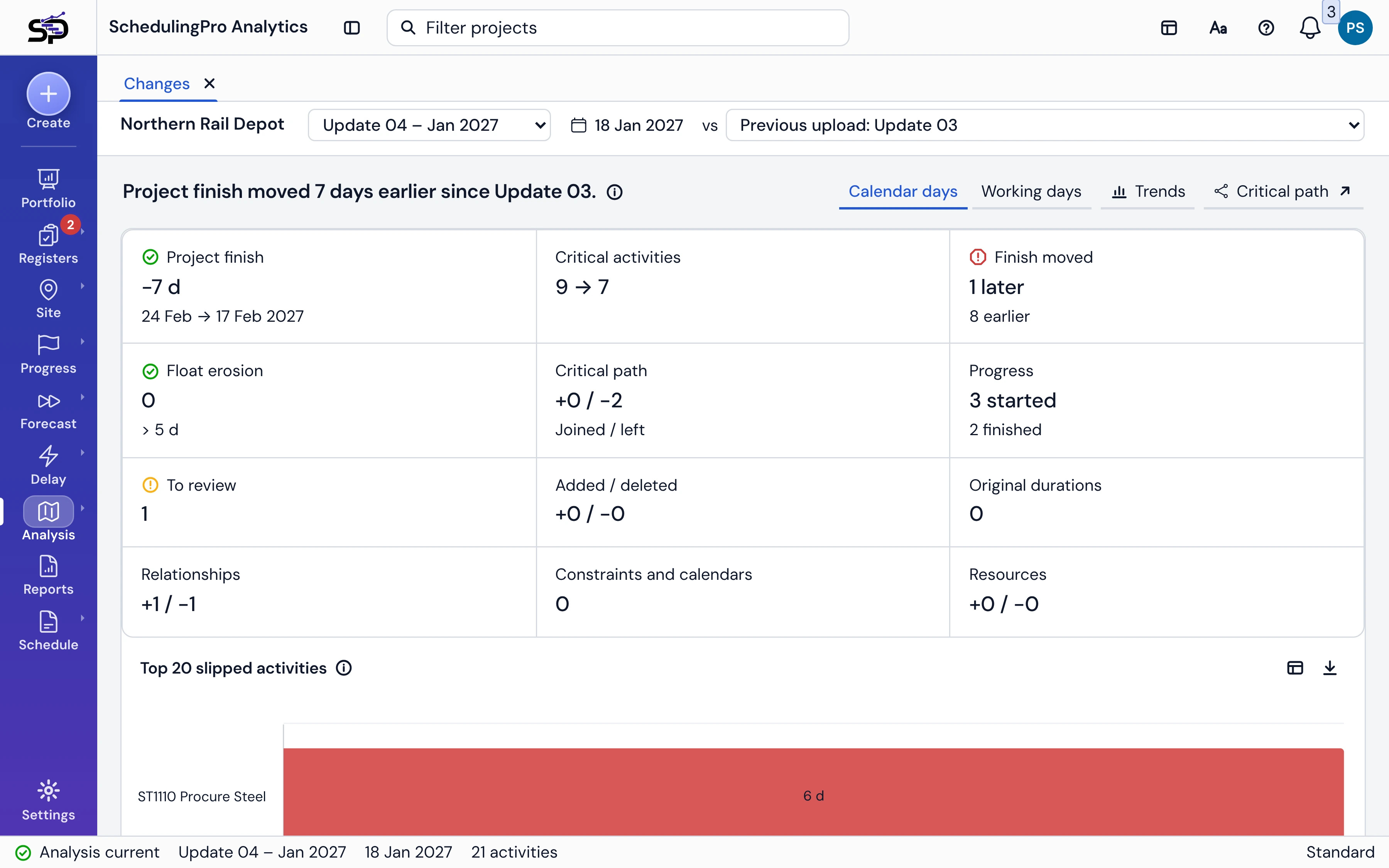
Every update is compared with the one before: dates that moved, logic that was edited, durations that grew. Changes that need an explanation are held for one before the update is approved.
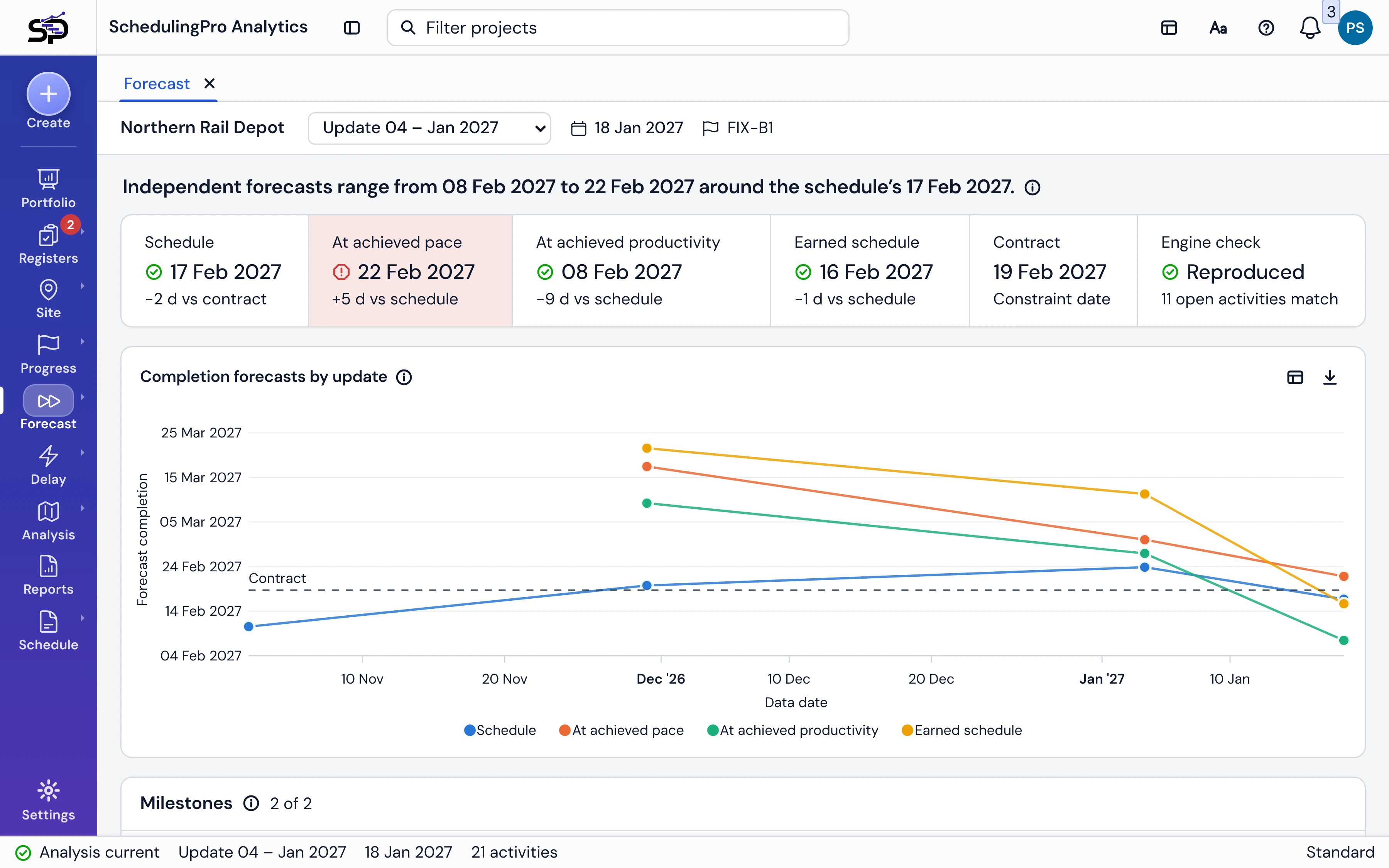
Four forecasts of the completion date sit side by side, from the schedule itself, the pace of progress, productivity and earned schedule, each with what it rests on.
Raise an issue, a risk, an action or a decision against the milestone or activity it concerns. Each has an owner, a date and a history that follows the schedule from update to update.
How it works
The planner exports the schedule as they do today. The app does the reading, and the team does the acting.
Learn moreThe planner exports the schedule as they do today: a Primavera P6 XER or XML file, or a Microsoft Project MPP.
The app reads it, analyses it and compares it with the previous update and the baseline.
The team raises issues, risks, actions and decisions against what the update shows.
A controls manager approves the update with its explanations on record, and the report goes out.
In action
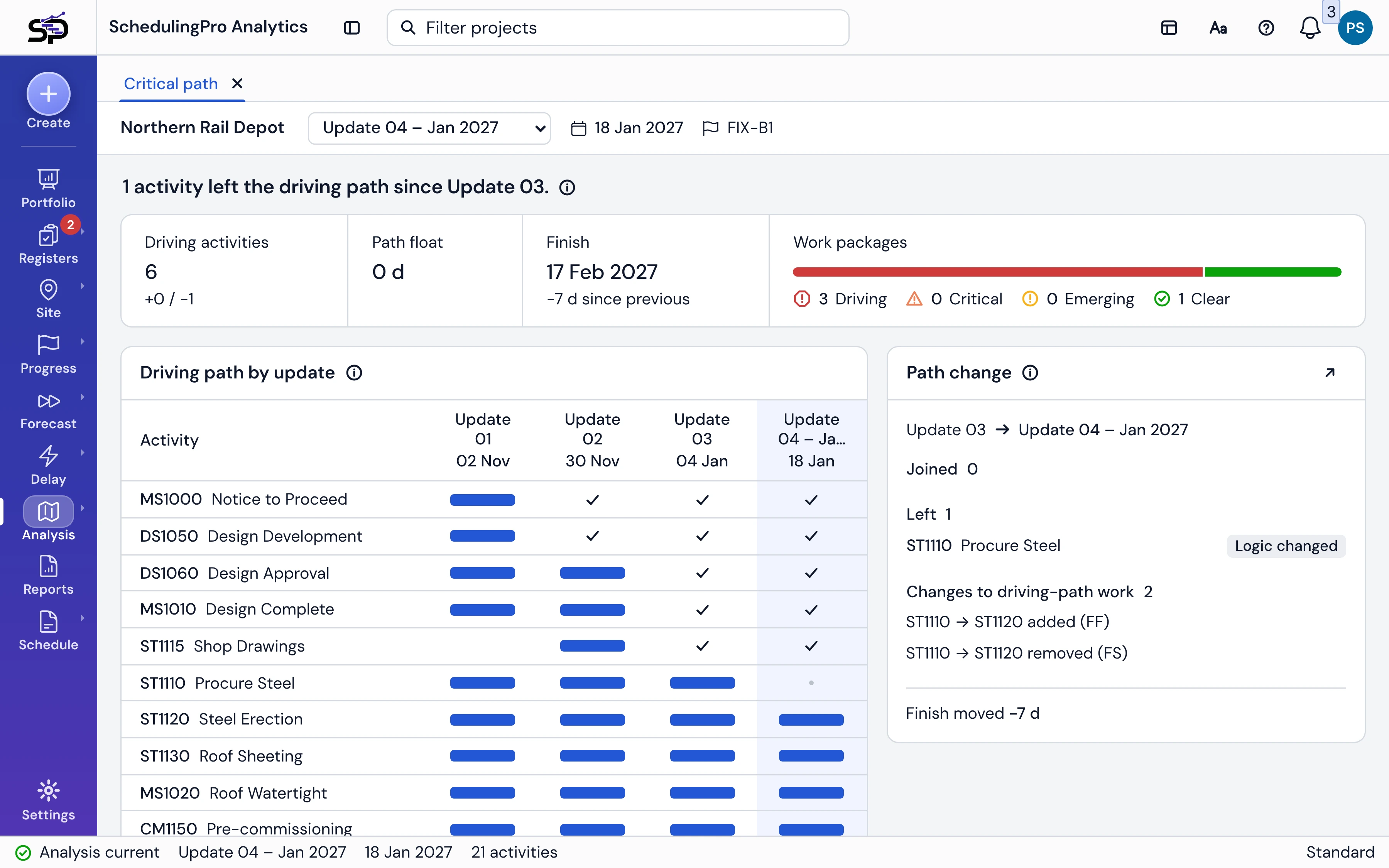
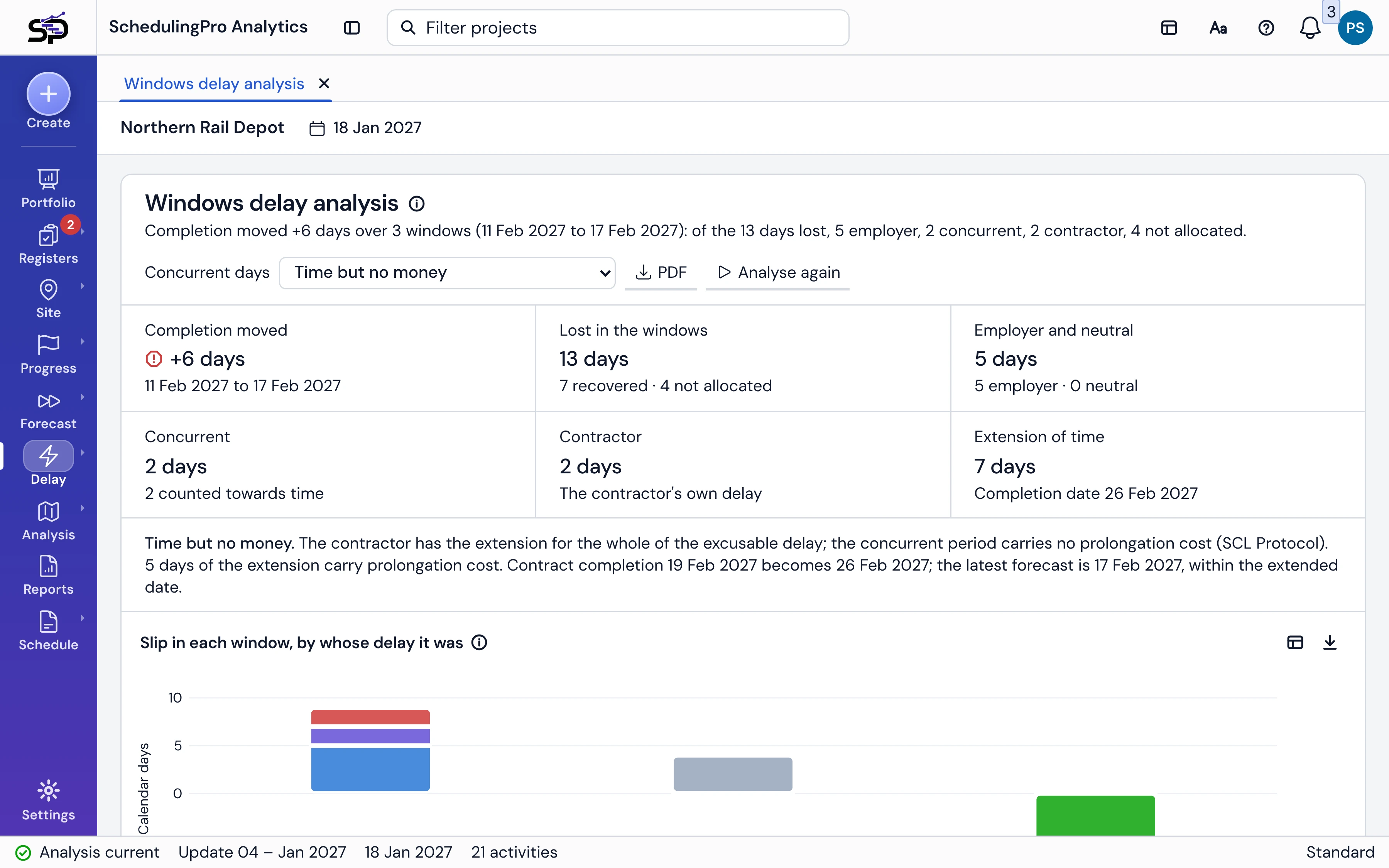
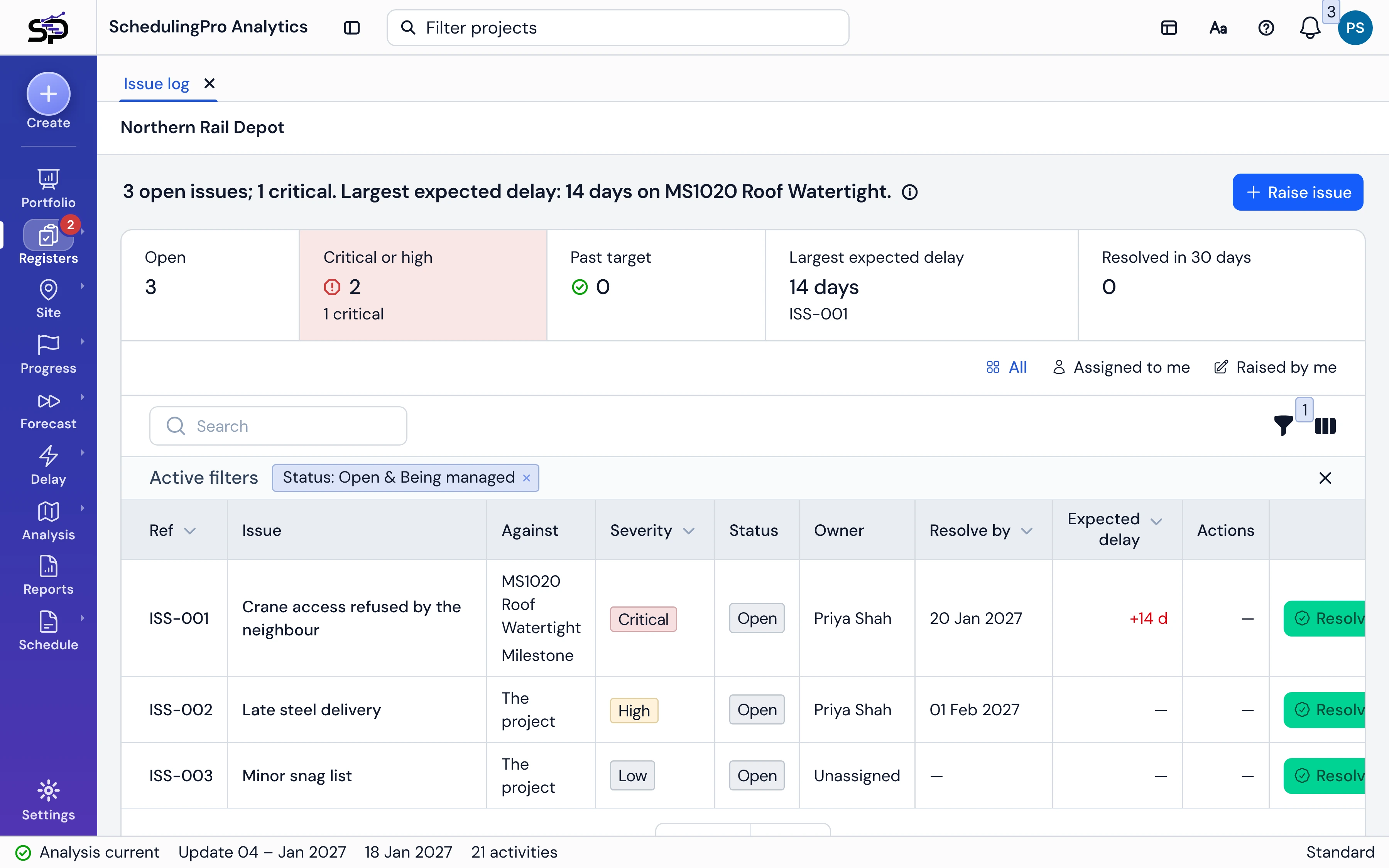
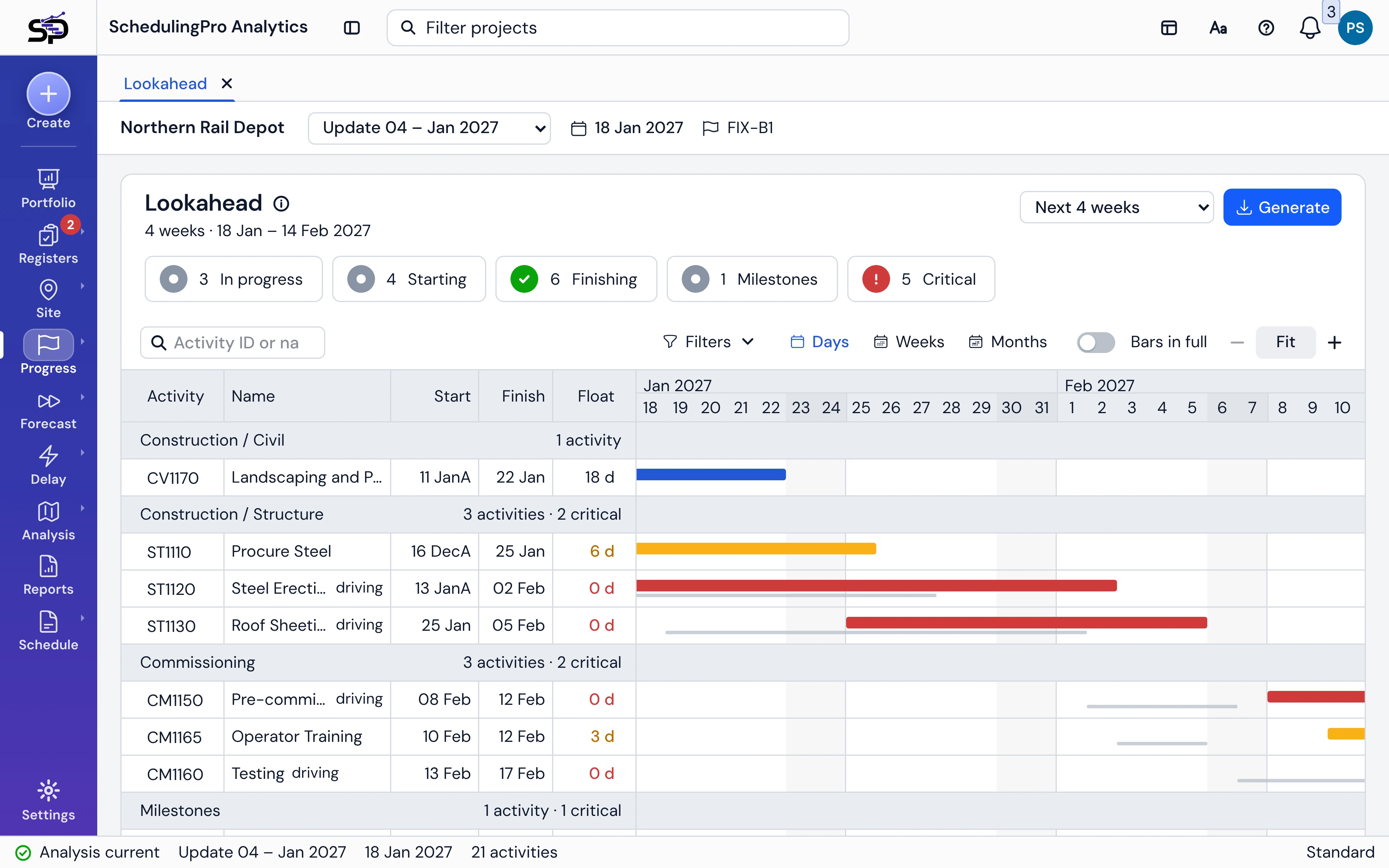
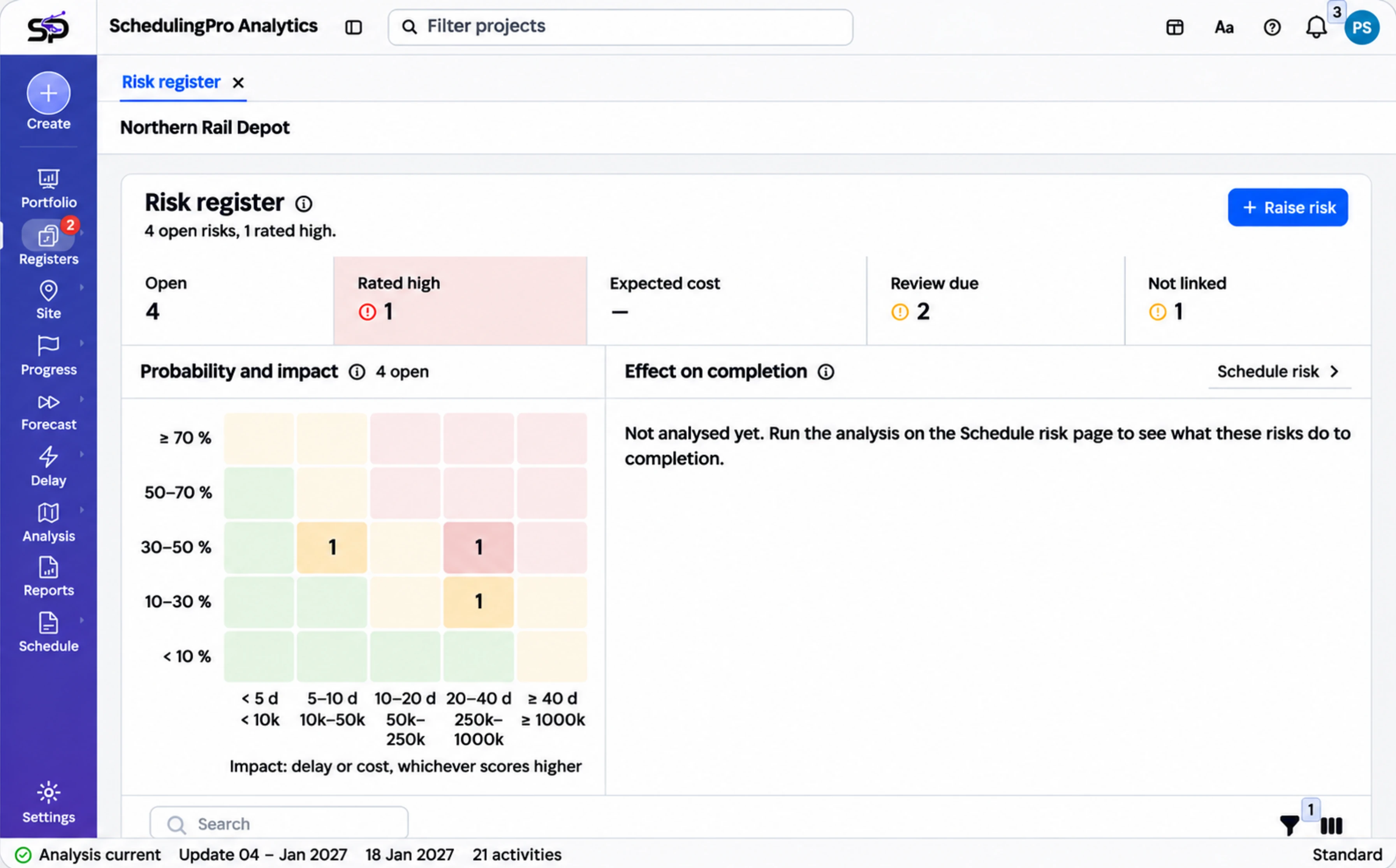
No new way of planning and nothing to key in twice. The app works from the files your planner already produces.
Roles
Everyone has a role on each project they belong to, so people see and change only what their part calls for.
For the people who need to know where the programme stands.
What they can do:
For the people who keep the schedule.
What they can do:
For the people who answer for the schedule.
What they can do:
For the people who run the organisation's account.
What they can do:
Update the schedule without opening the planning tool.
Download the progress sheet, fill in what was done on site, and upload it. The app checks every row, flags work done out of sequence, reschedules, and hands back an XER file ready to import.
Learn more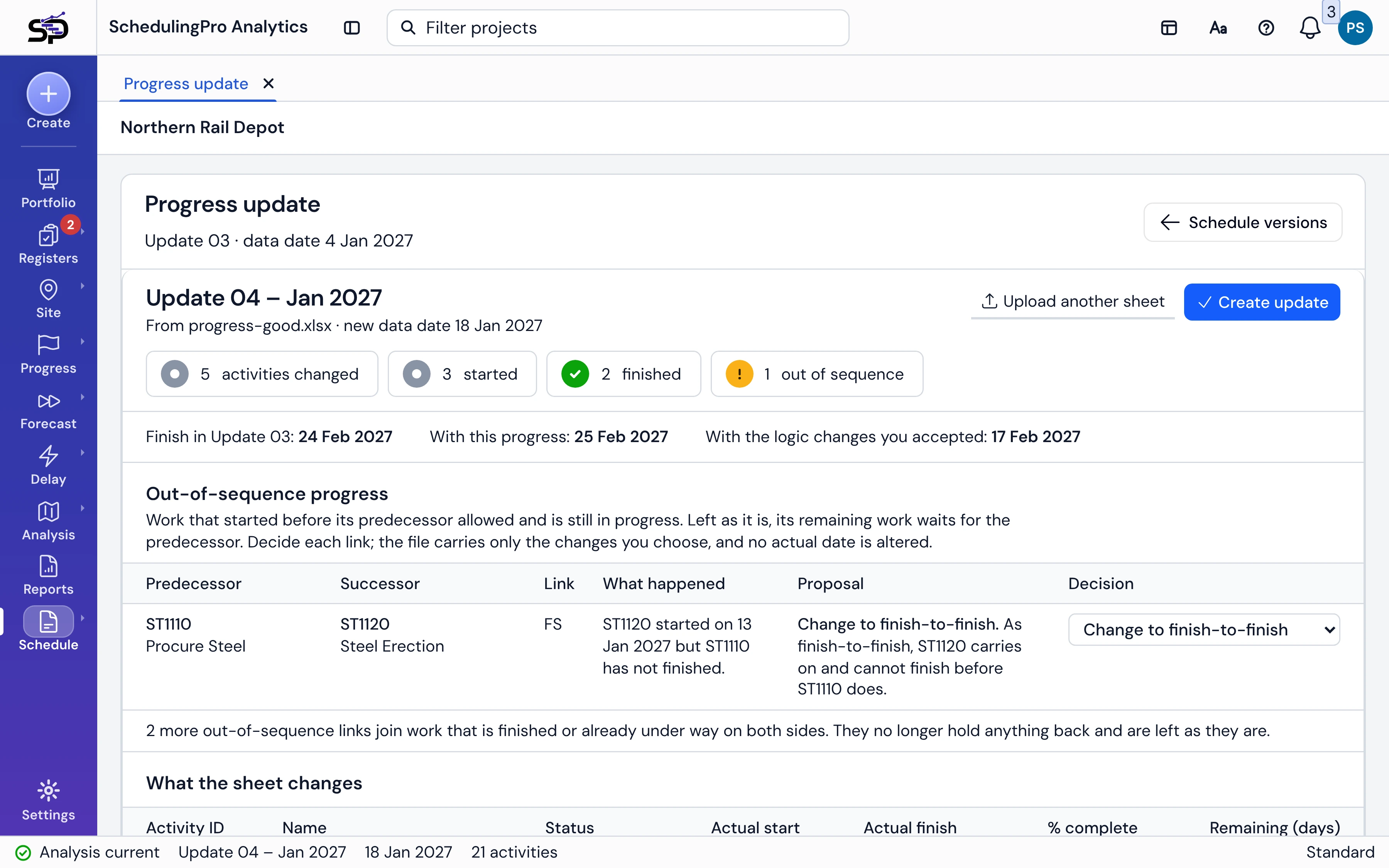
Resources
Getting started
Your first ten minutes: signing in, the workspace bar, the explorer and tabs.
Get startedHow-to guide
From the export in P6 or Microsoft Project to an analysed update in the app.
Read the guideHow-to guide
Time impact analysis, concurrent delay and windows analysis, step by step.
Read the guideAdministration
Adding people, giving them a role on a project, and single sign-on.
Learn moreA web application for project controls. It reads each schedule update your planner exports, and shows where every milestone stands, what is driving the finish, whether the forecast holds and what changed since the last update. Issues, risks, actions and decisions are kept beside the schedule they concern.
Primavera P6 XER files give the fullest analysis. P6 and Microsoft Project XML files and Microsoft Project MPP files are read as well.
No. The app reads the file you upload and leaves your P6 or Microsoft Project schedule as it is. The one exception is by request: a progress update entered in Excel can be applied to a copy of the schedule, which the app gives back as a new XER file for you to import.
Four ways, shown side by side: the schedule's own calculated finish, the pace of progress so far, productivity, and earned schedule. Each forecast says what it rests on, so you can see where they agree and where they part.
Three ways. A time impact analysis models an event on the schedule before it happens. Concurrent delay separates the employer's delay from the contractor's and gives the net extension of time. A windows analysis measures delay from one update to the next, split between progress and changes to the schedule.
Each person has a role on each project: viewer, planner or controls manager. Viewers read, planners upload updates and change settings, and controls managers also approve updates and record decisions. Organisation administrators manage users, programmes and projects.
Yes. An administrator can set up single sign-on with Microsoft Entra ID, Google Workspace or another OpenID Connect provider, so people sign in with the account they already have.
Yes. Reports are produced as PDF documents, and the lookahead, the registers and the analyses can be exported to PDF or Excel.
Ask your organisation's administrator or your project's planner to add you. You will receive an invitation by email with a link to set your password.
Sign in with the account your administrator gave you. If you do not have one yet, ask your project's planner to add you.